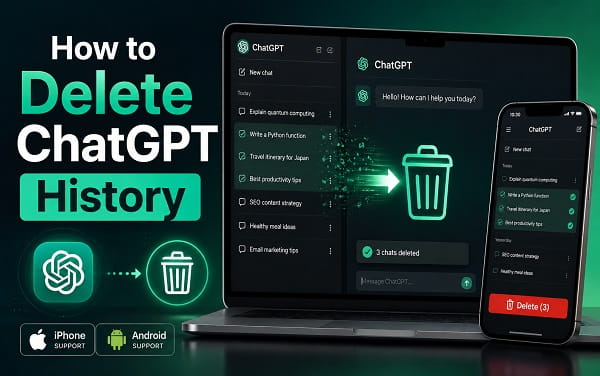
If you want to delete your ChatGPT history, you can remove one conversation at a time or clear all chats from your account. The steps are slightly different on the web, iPhone, and Android, but the result is the same: deleted chats disappear from your visible history and cannot be recovered.
OpenAI currently says a deleted chat is removed from your history immediately and scheduled for permanent deletion from its systems within 30 days, unless the conversation has already been de-identified or OpenAI must retain it for legal or security reasons.
That makes Delete very different from Archive.
Deleting a conversation is permanent. Archiving only hides it from the main sidebar while keeping it in your account.
There is another important distinction: deleting ChatGPT history does not automatically delete everything ChatGPT may remember about you. Saved Memory and other personalization sources can exist separately from the conversation itself.
This guide explains how to delete individual chats, clear all ChatGPT history, archive conversations instead, export a copy before deleting, remove saved Memory, and use Temporary Chat when you do not want a conversation added to normal history.
Quick Answer: How to Delete ChatGPT History
To delete one conversation on ChatGPT web:
- Open ChatGPT.
- Find the conversation in the left sidebar.
- Hover over the chat title.
- Click the three-dot menu.
- Select Delete.
- Confirm the deletion.
To delete all ChatGPT chats:
- Open ChatGPT.
- Open Settings.
- Select Data Controls.
- Find Delete all chats.
- Select it.
- Confirm that you want to delete the conversations.
OpenAI says deleting all chats also applies to conversations stored inside Projects, so review important Project chats before using the option.
If you only want to clean up the sidebar without losing conversations, use Archive instead.
What Happens When You Delete ChatGPT History?
When you delete a ChatGPT conversation:
- It disappears from your visible chat history immediately.
- You cannot restore it from the ChatGPT interface.
- OpenAI says it is scheduled for permanent deletion from its systems within 30 days.
- The 30-day schedule can have exceptions for legal or security obligations or data that has already been de-identified.
- The deleted conversation is also removed from ChatGPT’s history search index.
- If the conversation had a ChatGPT shared link, deleting the original conversation also invalidates that shared link.
The most important point is that deletion cannot be undone.
If there is any chance you will need the information later, archive the conversation or export your ChatGPT data before deleting it.
How to Delete One ChatGPT Conversation on the Web
On a desktop or laptop browser:
- Go to ChatGPT and sign in.
- Look at the conversation history in the left sidebar.
- Find the chat you want to remove.
- Hover your mouse over the conversation title.
- Click the three dots beside the title.
- Select Delete.
- Confirm the deletion.
The conversation should disappear from the sidebar immediately.
If You Cannot Find the Chat
Use ChatGPT’s history search before assuming it is gone.
Search can help locate older conversations that are no longer visible near the top of the sidebar.
However, once a conversation has actually been deleted, OpenAI says it is removed from the search index and cannot be recovered through search.
Be Careful With Similar Chat Titles
ChatGPT often creates automatic titles based on the early messages in a conversation.
If you have several chats with similar names, open the conversation first and confirm it is the correct one before selecting Delete.
How to Delete ChatGPT History on iPhone
OpenAI’s current iOS instructions use the conversation history menu.
On an iPhone:
- Open the official ChatGPT app.
- Tap the menu icon in the top-left corner.
- Find the conversation you want to delete.
- Press and hold the chat title.
- Tap Delete in the menu that appears.
- Confirm if ChatGPT asks for confirmation.
The chat is then removed from your history.
Deletion is permanent.
If Pressing and Holding Does Nothing
Try these checks:
- Update ChatGPT from the App Store.
- Close and reopen the app.
- Make sure you are pressing and holding the conversation title in the history list rather than text inside the open conversation.
- Confirm you are using the official ChatGPT app from OpenAI.
The interface can change as OpenAI updates the app, but the conversation options remain accessible from the chat-history area.
How to Delete ChatGPT History on Android
OpenAI’s current Android instructions are very similar to iPhone.
On Android:
- Open the ChatGPT app.
- Tap the menu button in the top-left corner to open your conversation history.
- Find the chat you want to remove.
- Press and hold the conversation title.
- Select Delete.
- Confirm the deletion if prompted.
The conversation will be removed from your history.
If You Have Several ChatGPT Accounts
Make sure you are signed into the correct account before deleting anything.
It is easy to switch between:
- Google sign-in
- Apple sign-in
- Email-based ChatGPT accounts
- Personal and work workspaces
A deleted conversation cannot be restored simply by switching back to the account later.
How to Delete All ChatGPT History at Once
If you have hundreds of conversations and want to clear everything, ChatGPT includes a bulk delete option.
Open:
Settings > Data Controls
Look for:
Delete all chats
Select it and confirm the action.
OpenAI says this applies to all conversations, including chats inside Projects.
That makes this option much more destructive than deleting one conversation.
Before confirming, check whether your account contains:
- Important research chats
- Work conversations
- Project notes
- Uploaded-file discussions
- Coding sessions
- Writing drafts
- Study notes
- Conversations you previously shared with other people
If you only want a cleaner sidebar, use Archive all chats instead.
Delete vs Archive: Which Should You Use?
The difference is simple.
| Action | Removes chat from sidebar | Keeps chat in account | Can be restored |
|---|---|---|---|
| Delete | Yes | No, it is scheduled for deletion | No |
| Archive | Yes | Yes | Yes |
Delete a Chat When
Use Delete when:
- You are sure you no longer need the conversation.
- The chat contains outdated or unwanted information.
- You want the conversation removed rather than merely hidden.
- You accidentally created a conversation you do not want to keep.
Archive a Chat When
Use Archive when:
- You want to reduce sidebar clutter.
- You may need the conversation later.
- You want to hide an old project without destroying it.
- You are unsure whether the chat will be useful again.
For most routine cleanup, I prefer archiving first.
You can always permanently delete an archived chat later.
How to Archive a ChatGPT Conversation
On the web:
- Find the conversation in the sidebar.
- Hover over the chat title.
- Click the three dots.
- Select Archive.
Unlike Delete, OpenAI currently says archiving does not require the same deletion confirmation because the chat remains in your account.
How to Find Archived ChatGPT Chats
Open:
Settings > Data Controls
Find:
Archived Chats
Select Manage.
From there you can:
- Unarchive a conversation
- Permanently delete an archived conversation
Archived chats follow the same retention rules as normal chats while they remain in your account.
How to Archive All ChatGPT Chats
If your sidebar is overloaded but you do not want to lose the conversations, use the bulk archive option.
Open:
Settings > Data Controls
Select:
Archive all chats
This is safer than Delete all chats when your goal is organization rather than permanent removal.
You can later manage the archived conversations through the Archived Chats section.
Export Your ChatGPT History Before Deleting It
If you are planning to delete a large amount of ChatGPT history, exporting your data first can be a sensible precaution.
On the web:
- Sign in to ChatGPT.
- Open your profile menu.
- Select Settings.
- Open Data Controls.
- Find Export data.
- Select Export.
- Confirm the export request.
OpenAI will prepare your data and send the download instructions to the email address or contact method associated with the account.
The export can include your conversation history and other account data.
Why Export First?
An export is useful when:
- You have years of conversations.
- Some chats contain research you may need later.
- You are deleting all chats rather than one conversation.
- You are moving to another personal ChatGPT account.
- You want a personal archive before cleaning the account.
Do not treat the export as a way to restore deleted chats into the original sidebar.
OpenAI does not provide a normal restore button for deleted ChatGPT conversations.
Can You Recover Deleted ChatGPT History?
No.
OpenAI says deleted chats cannot be recovered through:
- The ChatGPT interface
- APIs
- Customer support
That is why the confirmation step matters.
If you are uncertain, archive instead.
What If the Chat Disappeared but You Did Not Delete It?
Before assuming permanent deletion, check:
- The correct ChatGPT account
- The correct workspace
- Archived Chats
- Chat-history search
- Temporary Chat
- Whether the chat was created while history behavior was different
A missing chat and a deleted chat are not necessarily the same thing.
Does Deleting ChatGPT History Delete Memory?
No, not necessarily.
This is one of the most important parts of the process.
ChatGPT Memory can store or reference personalization information separately from a normal conversation.
For example, imagine you told ChatGPT:
Remember that I prefer short answers.
You later delete the conversation where you said it.
The saved memory may still exist.
OpenAI explicitly says deleting a chat does not automatically remove saved Memory from that conversation.
If you want to troubleshoot or manage the feature itself, see ChatGPT Memory Not Working? 12 Ways to Fix It.
How to Delete Something ChatGPT Remembers
Open:
Settings > Personalization > Memory
Depending on the current Memory interface, you may be able to:
- Review saved memories
- Manage the Memory Summary
- Correct remembered information
- Tell ChatGPT to forget something
- Delete individual memories
- Remove all saved memories where available
You can also say directly:
Forget that I prefer short answers.
Fully Removing Personal Information
OpenAI currently says that fully deleting something ChatGPT may know about you can require removing every source where the information appears.
That can include:
- Past chats
- Archived chats
- Saved Memory or Memory Summary
- Files
- Connected apps containing the same information
So if privacy is your goal, deleting the visible conversation alone may not be enough.
Does Turning Off Memory Delete Chat History?
No.
Memory and chat history are separate.
Turning Memory off changes how ChatGPT uses personalization information.
It does not automatically erase the conversations visible in your chat history.
Likewise, deleting chat history does not automatically turn off Memory.
If you want to manage both, handle them separately.
Does Deleting Chat History Stop OpenAI From Using Future Chats for Model Improvement?
Not by itself.
Deleting old conversations and controlling whether future chats are used to improve models are different actions.
For signed-in ChatGPT accounts, OpenAI currently provides:
Settings > Data Controls > Improve the model for everyone
Turn that setting off if you do not want eligible future conversations used to improve OpenAI’s models.
Your chats can still remain in your history even when that setting is off.
This setting syncs across devices for the account.
What Is Temporary Chat?
Temporary Chat is useful when you want to have a conversation without adding it to normal ChatGPT history.
OpenAI says Temporary Chats:
- Do not appear in normal chat history
- Do not create normal memories
- Do not use normal memories for personalization
- Are not used to train OpenAI’s models
- Are deleted from OpenAI’s systems after 30 days, subject to the stated safety handling
This can be useful for:
- One-off questions
- Topics you do not want mixed into personalization
- Testing ChatGPT without affecting Memory
- Conversations you do not want cluttering the sidebar
Temporary Chat is not the same thing as manually deleting a normal conversation afterward.
How to Start a Temporary Chat
On supported ChatGPT interfaces:
- Start a new conversation.
- Select the Temporary control or Temporary Chat option.
- Confirm you are in the temporary session.
- Continue the conversation.
The exact location can change as OpenAI updates ChatGPT.
Temporary Chat can still follow your Custom Instructions even though it does not use normal Memory.
Does Deleting a Chat Delete Its Shared Link?
Yes.
If you created a ChatGPT shared link from a conversation and then delete the original chat, OpenAI says the shared link is also deleted.
People who open the old link should no longer be able to view the conversation through that shared URL.
However, there is an important exception.
If someone previously imported or copied the shared conversation into their own ChatGPT history, deleting your original link does not delete the copy in their account.
That copy is controlled by the other user’s account.
How to Delete ChatGPT Shared Links Without Deleting the Chat
If you want to keep the original conversation but stop sharing it:
- Open Settings.
- Select Data Controls.
- Find Shared links.
- Select Manage.
- Delete the individual shared link.
You can also manage a link from the conversation’s sharing controls.
Removing the shared link does not require deleting the original chat.
Does Deleting ChatGPT History Delete Uploaded Files?
The answer depends on where the file is stored.
Deleting the conversation can remove the file’s connection to that conversation, but ChatGPT now also has Library and file-storage behavior in supported accounts.
If an uploaded file has been saved separately in Library, deleting the chat does not always mean the Library copy disappears immediately.
If you are cleaning up files as well as conversations, check your ChatGPT Library and storage controls separately.
For troubleshooting attachment and storage problems, see ChatGPT File Upload Not Working? 12 Ways to Fix It.
How to Delete ChatGPT History Without Deleting Your Account
You do not need to delete your ChatGPT account just to clear your conversations.
Use:
Settings > Data Controls > Delete all chats
Your account can remain active after the conversations are deleted.
You can continue to use:
- ChatGPT
- Your subscription
- Account settings
- Personalization options
- Other available features
Deleting your entire account is a separate action and is much more significant.
Does Deleting ChatGPT Account Delete History?
Deleting the account is different from deleting chat history.
Account deletion affects the whole OpenAI account rather than only the conversation list.
Do not delete your account if your only goal is to remove old chats.
Use the conversation deletion controls instead.
If you have an active paid subscription, review the current billing and account-deletion instructions before closing the account.
How to Clear ChatGPT History Without Losing Important Chats
If you have a large account, deleting everything at once may be unnecessarily risky.
A safer cleanup process is:
- Archive chats you might need later.
- Delete obvious junk or test conversations.
- Export your data if the history contains important work.
- Review Projects for conversations you want to keep.
- Delete remaining unwanted chats.
- Review Memory separately if privacy is your goal.
- Check shared links if you previously shared conversations.
This takes longer than pressing Delete all chats, but it reduces the chance of losing something valuable.
Why Can’t I Delete a ChatGPT Conversation?
If the Delete option is missing or does not work:
Refresh ChatGPT
Reload the page or close and reopen the app.
Update the App
Install the latest version of ChatGPT from the App Store or Google Play.
Check Your Account
Make sure the chat belongs to the account currently open.
Check the Workspace
A personal workspace and an organization workspace can have separate conversation histories.
Try the Web Version
If the mobile app is behaving strangely, sign in at ChatGPT on the web and delete the conversation there.
Check OpenAI Status
If account controls are failing across devices, a temporary OpenAI service problem may be involved.
Do not create a second account just because one conversation will not delete.
Why Did My ChatGPT History Disappear?
If your entire history disappears unexpectedly, do not immediately assume the chats were deleted.
Check:
- Whether you signed into the wrong account
- Whether you switched workspaces
- Archived Chats
- Whether OpenAI is experiencing a history-loading problem
- Whether the conversation was temporary
Deleting history is permanent, but a temporarily empty sidebar can also result from an account or service issue.
Does ChatGPT Search Still Find Deleted Chats?
No.
OpenAI currently says deleted conversations are removed from the chat-history search index.
If you delete a chat and later search for a phrase from that conversation, it should not be retrievable through ChatGPT history search.
Archived chats are different because they remain in your account.
Should You Delete ChatGPT History for Privacy?
Deleting conversations can be part of privacy management, but it is not the only control worth checking.
If privacy is the main goal, review:
- Chat history
- Saved Memory
- Memory Summary
- Uploaded files
- Shared links
- Connected apps
- Model-improvement settings
- Temporary Chat
For sensitive information, avoid entering data into an AI service unless you understand how the service handles it and you are authorized to share it.
If you are evaluating the broader reliability and risks of AI systems, Can AI Be Trusted? Understanding AI Hallucinations and Errors explains why privacy is only one part of using AI responsibly.
Frequently Asked Questions
How do I delete ChatGPT history?
Open the conversation history, select the three-dot menu beside a chat, choose Delete, and confirm. To clear everything, go to Settings > Data Controls > Delete all chats.
How do I delete all ChatGPT history?
Open Settings > Data Controls, choose Delete all chats, and confirm. OpenAI says the action applies to all conversations, including chats inside Projects.
Can I recover deleted ChatGPT chats?
No. OpenAI says deleted conversations cannot be recovered through the ChatGPT interface, APIs, or support.
How long does OpenAI keep deleted chats?
OpenAI says deleted chats are scheduled for permanent deletion within 30 days unless they have already been de-identified or must be retained for legal or security reasons.
Is deleting a ChatGPT chat permanent?
Yes. The chat is removed from your visible history immediately and cannot be restored through ChatGPT.
Can I hide a ChatGPT chat without deleting it?
Yes. Use Archive. The conversation disappears from the main sidebar but remains in your account.
How do I find archived ChatGPT chats?
Go to Settings > Data Controls > Archived Chats > Manage.
Does deleting ChatGPT history delete Memory?
Not automatically. Saved memories and personalization can exist separately from chat history.
How do I delete something ChatGPT remembers?
Open Settings > Personalization > Memory and manage the remembered information, or tell ChatGPT directly to forget the detail.
Does turning off Memory delete my chats?
No. Memory and chat history are separate settings.
Can I export ChatGPT history before deleting it?
Yes. Go to Settings > Data Controls > Export data and request an export.
Does deleting a conversation remove its shared link?
Yes. OpenAI says deleting the original conversation also deletes the shared link associated with it.
Can someone still have a copy after I delete a shared link?
Yes. If another person previously imported the shared conversation into their own ChatGPT history, deleting your original link does not remove their copy.
Do Temporary Chats appear in ChatGPT history?
No. OpenAI says Temporary Chats do not appear in normal history and are deleted from its systems after 30 days.
Does deleting history stop ChatGPT from training on future conversations?
No. Use Settings > Data Controls > Improve the model for everyone to control eligible future model-improvement use.
Does deleting ChatGPT history delete my account?
No. Deleting conversations leaves your ChatGPT account active.
Delete Only What You Are Sure You Do Not Need
The safest way to clear ChatGPT history is to decide whether each conversation should be deleted or simply archived.
Delete a chat when you are certain you do not need it again. Archive it when you only want to remove clutter from the sidebar.
If you want to clear the entire account history, Settings > Data Controls > Delete all chats is the fastest option, but remember that OpenAI says the action also applies to conversations inside Projects and cannot be undone.
For privacy-focused cleanup, review more than the sidebar. Delete or correct saved Memory separately, inspect shared links, check uploaded files, and use Temporary Chat for future conversations that you do not want saved to normal history.
If you use several AI assistants and want to understand how their features compare, 15 Best AI Tools Other Than ChatGPT covers current alternatives for research, writing, coding, images, and productivity.
