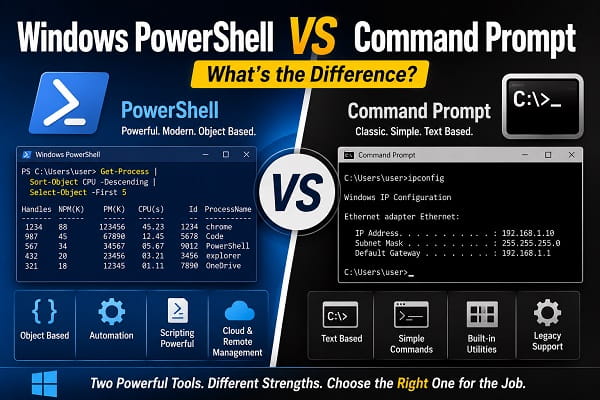
If you’ve ever searched for solutions to Windows problems, you’ve probably come across instructions that tell you to open either Command Prompt (CMD) or Windows PowerShell. At first glance, the two tools look very similar because they both use a command-line interface instead of the familiar Windows desktop. However, despite their similar appearance, they are designed for different purposes and offer different capabilities.
Many Windows users wonder whether Command Prompt is outdated, if PowerShell has replaced it, or which one they should use for everyday tasks. The answer depends on what you’re trying to accomplish. While both tools allow you to execute commands, PowerShell is far more powerful when it comes to scripting, automation, and system administration.
In this guide, I’ll compare Windows PowerShell and Command Prompt, explain their differences, discuss their strengths and weaknesses, and help you decide which one is best for your needs.
If you’ve recently worked with command-line tools, you may also find Running Scripts Is Disabled on This System? Ways to Fix It helpful.
What Is Command Prompt?
Command Prompt, often called CMD, is Microsoft’s traditional command-line interpreter that has been part of Windows for decades.
It allows users to:
- Run commands
- Navigate folders
- Manage files
- Diagnose Windows problems
- Execute batch files
- Perform basic administrative tasks
Many classic Windows commands, such as:
ipconfigpingsfcchkdskdiskpart
are commonly executed through Command Prompt.
Although Microsoft continues to include CMD in Windows 11, it has largely shifted its focus toward PowerShell and Windows Terminal for more advanced administration.
What Is Windows PowerShell?
Windows PowerShell is a much more advanced command-line shell and scripting environment developed by Microsoft.
Unlike Command Prompt, PowerShell is built on the .NET framework and works with objects instead of plain text.
PowerShell can:
- Manage Windows
- Control services
- Configure networks
- Manage Active Directory
- Automate repetitive tasks
- Execute scripts
- Access cloud services
- Manage Microsoft 365 and Azure
PowerShell is widely used by:
- IT administrators
- System administrators
- Network engineers
- Cloud engineers
- Cybersecurity professionals
However, it also includes many commands that are useful for everyday Windows users.
Similarities Between PowerShell and Command Prompt
Although they are different tools, they share several similarities.
Both can:
- Run command-line instructions.
- Launch Windows utilities.
- Access files and folders.
- Perform administrative tasks.
- Troubleshoot Windows.
- Execute certain system commands.
- Run with administrator privileges.
For basic tasks, either tool may produce the same result.
PowerShell vs Command Prompt: Key Differences
The biggest difference lies in how each tool processes information.
| Feature | Command Prompt | PowerShell |
|---|---|---|
| Introduced | Windows NT | Windows PowerShell |
| Interface | Command-line | Command-line + scripting |
| Data Handling | Text | Objects |
| Automation | Basic batch files | Advanced scripting |
| Programming Language | Batch | PowerShell scripting |
| Windows Administration | Basic | Advanced |
| Remote Management | Limited | Extensive |
| Cloud Support | No | Yes |
| Microsoft 365 Support | No | Yes |
| Learning Curve | Easier | More advanced |
PowerShell offers far greater flexibility, while Command Prompt remains simpler for basic commands.
PowerShell Uses Objects Instead of Text
One of PowerShell’s biggest advantages is its object-oriented design.
When CMD executes a command, it returns plain text.
PowerShell returns structured objects that can be filtered, sorted, modified, and passed directly into other commands.
For example, administrators can retrieve running services, filter specific processes, and export the results without manually parsing text.
This makes PowerShell much more suitable for automation and large-scale system management.
Command Prompt Is Easier for Beginners
For users who only need to run occasional commands, CMD is often easier.
Examples include:
ipconfigping google.comsfc /scannowThese commands are straightforward and commonly used for troubleshooting Windows problems.
Many online guides continue to use Command Prompt because it’s simple and familiar to most users.
PowerShell Is Better for Automation
PowerShell excels at automating repetitive tasks.
For example, administrators can write scripts that:
- Create user accounts.
- Rename hundreds of files.
- Install software.
- Configure Windows settings.
- Collect system information.
- Manage servers.
- Generate reports.
Tasks that might take hours manually can often be completed in seconds using PowerShell scripts.
Can PowerShell Run Command Prompt Commands?
Yes.
One of the reasons PowerShell is so versatile is that it supports many traditional Command Prompt commands.
For example, you can run:
ipconfigping google.comsfc /scannowchkdskinside PowerShell without any problems.
However, the reverse isn’t true.
Command Prompt cannot execute PowerShell cmdlets such as:
Get-ProcessGet-Serviceor
Get-ChildItemunless you explicitly launch PowerShell from CMD.
Is Command Prompt Being Replaced?
Not entirely.
Microsoft still includes Command Prompt in Windows 11, and many Windows utilities continue to rely on it.
However, Microsoft’s long-term focus has shifted toward:
- Windows PowerShell
- PowerShell 7
- Windows Terminal
These tools provide significantly more functionality than the traditional Command Prompt.
While CMD isn’t disappearing anytime soon, most new Windows administration features are built around PowerShell.
What Is Windows Terminal?
Windows Terminal is a modern application that can host multiple command-line environments in one window.
It supports:
- Command Prompt
- Windows PowerShell
- PowerShell 7
- Windows Subsystem for Linux (WSL)
- Azure Cloud Shell
Instead of replacing CMD or PowerShell, Windows Terminal acts as a launcher for them.
If you frequently work with command-line tools, Windows Terminal offers a cleaner interface with tabs, customizable themes, split panes, and improved performance.
When Should You Use Command Prompt?
CMD is usually the better choice when you need to perform simple tasks such as:
- Checking your IP address
- Running network diagnostics
- Repairing Windows system files
- Formatting drives
- Managing basic files and folders
- Executing older batch files
Because it’s straightforward, beginners often find it easier to learn.
When Should You Use PowerShell?
PowerShell is the better option when you need to:
- Automate repetitive tasks.
- Manage multiple computers.
- Write scripts.
- Configure Windows settings.
- Manage Windows services.
- Generate system reports.
- Work with Microsoft 365 or Azure.
- Administer enterprise environments.
PowerShell is especially valuable for IT professionals, but many advanced Windows users also benefit from learning it.
Which One Is Faster?
For basic commands, there’s very little difference in performance.
However, PowerShell can complete complex administrative tasks much more efficiently because it supports scripting and object-based data processing.
Instead of running dozens of manual commands, a single PowerShell script can automate the entire process.
Which One Should Beginners Learn?
If you’re new to command-line tools, start with Command Prompt.
It introduces you to basic commands without the added complexity of scripting.
Once you’re comfortable with CMD, learning PowerShell becomes much easier because many concepts carry over.
If you’re interested in IT, cybersecurity, networking, or system administration, investing time in PowerShell is worthwhile.
Common Myths About PowerShell and Command Prompt
Myth 1: PowerShell and CMD Are the Same
They may look similar, but they’re fundamentally different.
Command Prompt processes text, while PowerShell works with structured objects and includes a full scripting language.
Myth 2: Command Prompt Is Obsolete
Not true.
CMD remains useful for many troubleshooting and maintenance tasks and is still included in Windows 11.
Myth 3: PowerShell Is Only for IT Professionals
While PowerShell is popular among administrators, everyday users can also benefit from it for automation and advanced Windows management.
Myth 4: PowerShell Is Hard to Learn
PowerShell has a steeper learning curve than CMD, but beginners can start with simple commands and gradually learn scripting as needed.
Frequently Asked Questions
Which is better, PowerShell or Command Prompt?
Neither is universally better.
Command Prompt is ideal for basic commands and quick troubleshooting, while PowerShell is better for scripting, automation, and advanced system administration.
Can PowerShell replace Command Prompt?
For many users, yes.
PowerShell can execute many traditional CMD commands while providing additional features that Command Prompt doesn’t support.
Is CMD still available in Windows 11?
Yes.
Microsoft continues to include Command Prompt in Windows 11 alongside PowerShell and Windows Terminal.
Should I learn PowerShell?
If you regularly manage Windows systems, automate tasks, or work in IT, learning PowerShell is highly recommended.
Can I damage Windows using PowerShell?
Yes, if you run incorrect or malicious commands.
Always understand what a command does before executing it, especially when running PowerShell as an administrator.
Does Windows Terminal replace PowerShell?
No.
Windows Terminal is simply an application that lets you access PowerShell, Command Prompt, and other command-line environments from one interface.
Both Windows PowerShell and Command Prompt remain valuable tools in Windows 11, but they serve different purposes. Command Prompt is perfect for quick commands and everyday troubleshooting, while PowerShell offers powerful scripting, automation, and system management capabilities that go far beyond traditional command-line tasks. Understanding when to use each tool will help you work more efficiently and build stronger Windows administration skills, whether you’re a casual user or an IT professional.
