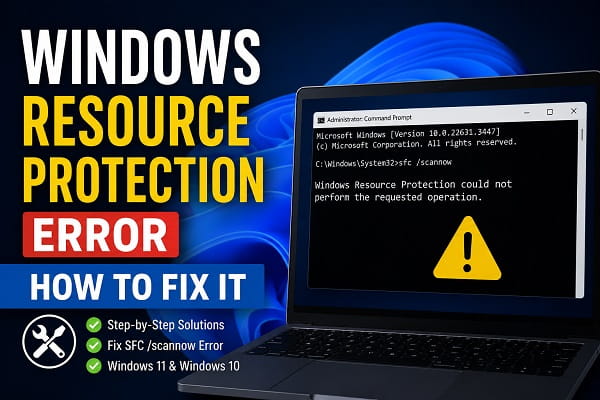
If you’ve just run the System File Checker (SFC) command and received the message “Windows Resource Protection could not perform the requested operation,” you’re probably wondering what went wrong. Instead of repairing your Windows system files, the scan stops unexpectedly, leaving you without a clear explanation of the problem.
Although the error can be alarming, it doesn’t necessarily mean your Windows installation is beyond repair. In many cases, it happens because Windows encounters an issue that prevents the System File Checker from completing its scan. The problem could be related to corrupted system files, a damaged Windows Component Store, disk errors, or services required by Windows not functioning correctly.
Fortunately, there are several proven solutions that can resolve the issue. In this guide, I’ll explain what this error means, why it occurs, and the steps you can take to get SFC /scannow working again on Windows 11 and Windows 10.
What Does “Windows Resource Protection Could Not Perform the Requested Operation” Mean?
Windows Resource Protection (WRP) is a built-in Windows security feature that protects important operating system files, folders, and registry keys from unauthorized modification. These protected resources are essential for Windows to function properly. If they become corrupted, deleted, or replaced with incorrect versions, your computer may become unstable, applications may stop working, or Windows itself may fail to boot.
When you run the following command:
sfc /scannowWindows starts the System File Checker (SFC) utility. This tool scans every protected system file and compares it with the original copy stored in the Windows Component Store. If it detects a corrupted or missing file, SFC attempts to replace it automatically with a healthy version.
However, when Windows displays the message:
Windows Resource Protection could not perform the requested operation
it means the System File Checker could not complete the scan. Instead of repairing corrupted files, SFC encountered another problem that prevented it from carrying out the requested operation.
This error is different from other common SFC messages.
For example:
- Windows Resource Protection found corrupt files and successfully repaired them means the scan completed successfully and Windows fixed the damaged files.
- Windows Resource Protection found corrupt files but was unable to fix some of them means the scan finished, but some files couldn’t be repaired.
- Windows Resource Protection could not perform the requested operation means the scan itself could not continue because another issue interrupted the repair process.
Understanding this difference is important because the solutions vary depending on which message you receive.
How Windows Resource Protection, SFC, and DISM Work Together
Many Windows users confuse Windows Resource Protection, System File Checker (SFC), and Deployment Image Servicing and Management (DISM). Although they work together, each one serves a different purpose.
Windows Resource Protection acts as the security layer that protects critical operating system files from unauthorized changes. It monitors essential system resources and ensures they remain intact.
System File Checker (SFC) is the repair tool that scans those protected files for corruption. When it finds damaged files, it replaces them with healthy copies obtained from the Windows Component Store.
DISM, on the other hand, repairs the Windows Component Store itself. If the Component Store becomes corrupted, SFC has no reliable source from which to restore damaged files. In such cases, running DISM first usually resolves the underlying problem, allowing SFC to complete successfully afterward.
Because of this relationship, Microsoft generally recommends running DISM before SFC whenever the System File Checker encounters errors.
Why Does This Error Occur?
Several issues can prevent Windows Resource Protection from completing an SFC scan. While the exact cause varies from one computer to another, the following are the most common reasons.
Corrupted Windows Component Store
The Windows Component Store contains backup copies of protected system files. If these files become damaged, SFC cannot retrieve healthy replacements, causing the scan to fail before it finishes.
Disk Errors
Your hard drive or SSD may contain file system corruption or bad sectors that prevent Windows from accessing important system files. In such situations, SFC may stop unexpectedly because it cannot read the files it needs.
Interrupted Windows Updates
If your computer loses power or is forcefully shut down while installing updates, Windows may be left in an inconsistent state. This can affect both the Component Store and protected system files.
TrustedInstaller Problems
The Windows Modules Installer, commonly known as TrustedInstaller, manages the installation and repair of protected Windows files. If this service is disabled or not functioning correctly, SFC may be unable to complete its scan.
Malware Infection
Some forms of malware target essential Windows files or services. Even after the malicious software has been removed, the damage it leaves behind can interfere with the System File Checker.
Third-Party Software Conflicts
Certain antivirus programs, system optimization tools, and disk utilities may temporarily lock protected files, preventing Windows Resource Protection from accessing them during the scan.
Fix 1: Restart Your Computer
It may sound simple, but restarting your computer is often enough to resolve temporary system glitches that interfere with SFC.
Windows regularly creates temporary files and background processes that may lock certain system resources. A restart clears these temporary conditions and allows Windows to reload essential services from scratch.
To restart your computer:
- Save your work and close all open applications.
- Click the Start menu.
- Select the Power button.
- Choose Restart.
After Windows starts again, open Command Prompt as Administrator and run:
sfc /scannowIf the scan completes successfully, the issue was likely caused by a temporary system process.
Fix 2: Run DISM Before Running SFC
If restarting doesn’t help, the next step is to repair the Windows Component Store.
Since SFC relies on this repository to replace damaged system files, repairing the Component Store often resolves the error immediately.
Open Command Prompt as Administrator and run:
DISM /Online /Cleanup-Image /RestoreHealthThe repair process may take anywhere from several minutes to over half an hour, depending on your computer and the extent of the corruption. During this time, the progress indicator may appear to pause at certain percentages. This is completely normal, so avoid interrupting the process.
Once DISM completes successfully, restart your computer before running:
sfc /scannowMany users find that SFC works normally after the Component Store has been repaired.
Fix 3: Check the Health of the Windows Component Store
Before performing additional repairs, it’s helpful to determine whether Windows has already detected corruption in the Component Store.
Open Command Prompt as Administrator and enter:
DISM /Online /Cleanup-Image /CheckHealthThis command performs a quick check to determine whether the Windows image has been flagged as corrupted.
If Windows reports that the image is repairable, you should immediately run:
DISM /Online /Cleanup-Image /RestoreHealthFor a more thorough examination, you can also run:
DISM /Online /Cleanup-Image /ScanHealthUnlike the quick health check, ScanHealth performs a detailed analysis of the Windows image. Although it takes longer to complete, it can identify corruption that may not be detected by the basic check.
Once the scan and any necessary repairs have finished, restart your computer and run the System File Checker again. If the error was caused by corruption within the Windows image, SFC should now be able to complete its operation successfully.
Fix 4: Run CHKDSK to Repair Disk Errors
If the Windows Component Store is healthy but you’re still seeing the “Windows Resource Protection could not perform the requested operation” error, the next thing to check is your storage drive.
System File Checker relies on your SSD or hard drive to read protected Windows files. If the drive contains file system corruption or bad sectors, SFC may be unable to access certain files, causing the scan to stop before it finishes.
Windows includes a built-in utility called Check Disk (CHKDSK) that scans your drive for errors and attempts to repair them.
To run CHKDSK:
- Open Command Prompt as Administrator.
- Type the following command:
chkdsk C: /f /r- Press Enter.
If Windows reports that the drive is currently in use, you’ll see a message asking whether you want to schedule the scan the next time your computer restarts.
Type:
Yand press Enter.
Restart your computer to begin the scan.
Depending on the size and condition of your drive, CHKDSK may take anywhere from several minutes to over an hour to complete. Avoid interrupting the process, as doing so could cause additional file system problems.
Once Windows starts normally, open Command Prompt again and run:
sfc /scannowIf disk corruption was preventing SFC from accessing protected files, the scan should now complete successfully.
Fix 5: Run SFC in Safe Mode
Sometimes the problem isn’t Windows itself but another application running in the background.
Antivirus software, security suites, system optimization tools, or even faulty drivers can temporarily lock protected system files, preventing SFC from scanning them.
Starting Windows in Safe Mode loads only essential Microsoft drivers and services, making it easier for System File Checker to perform its job without interference.
Boot into Safe Mode
- Open Settings.
- Go to System > Recovery.
- Under Advanced startup, click Restart now.
- Select Troubleshoot.
- Choose Advanced options.
- Click Startup Settings.
- Select Restart.
- Press 4 or F4 to boot into Safe Mode.
After Windows starts:
- Search for Command Prompt.
- Right-click it.
- Select Run as administrator.
- Run:
sfc /scannowIf the scan completes successfully in Safe Mode, it’s a strong indication that a third-party application or service is interfering with the repair process during a normal Windows startup.
If you’re unfamiliar with Safe Mode, you can read my detailed guide on Boot Windows 11 in Safe Mode for step-by-step instructions.
Fix 6: Make Sure the Windows Modules Installer (TrustedInstaller) Service Is Running
One of the most overlooked causes of this error is the Windows Modules Installer service, commonly known as TrustedInstaller.
This service is responsible for installing, modifying, and repairing protected Windows system files. Since SFC depends on it, the scan may fail if the service is disabled or unable to start.
To verify that the service is running:
- Press Windows + R.
- Type:
services.msc- Press Enter.
- Scroll down until you find Windows Modules Installer.
- Double-click it.
Check the following settings:
- Startup type: Manual (recommended) or Automatic
- Service status: Running
If the service isn’t running:
- Click Start.
- Click Apply.
- Click OK.
Restart your computer and try running:
sfc /scannowagain.
If the error disappears, TrustedInstaller was preventing Windows Resource Protection from performing the requested operation.
Fix 7: Run System File Checker Offline
If Windows itself is too damaged to run SFC properly, you can perform the scan from the Windows Recovery Environment (WinRE).
Running SFC offline allows Windows to repair files that may be locked while the operating system is running.
Boot into Windows Recovery
- Open Settings.
- Navigate to System > Recovery.
- Click Restart now beside Advanced startup.
When the recovery menu appears:
- Select Troubleshoot
- Choose Advanced options
- Open Command Prompt
Before running SFC, identify the correct Windows partition by entering:
diskpart
list volume
exit
Locate the drive containing your Windows installation.
Then run:
sfc /scannow /offbootdir=C:\ /offwindir=C:\WindowsReplace C: with the correct drive letter if Windows is installed on another partition.
The offline scan may take some time to complete, but it’s often successful when normal SFC scans repeatedly fail.
Fix 8: Scan Your Computer for Malware
Although it’s less common, malware can damage protected Windows files or interfere with important services used by System File Checker.
If your computer has recently behaved unusually, such as displaying unexpected pop-ups, crashing frequently, or running significantly slower than normal, it’s worth performing a full malware scan.
Using Microsoft Defender:
- Open Windows Security.
- Click Virus & threat protection.
- Select Scan options.
- Choose Full scan.
- Click Scan now.
The scan may take a considerable amount of time depending on the number of files stored on your computer.
If malware is detected, allow Windows Security to remove it completely before restarting your PC.
Once the cleanup is finished, run:
sfc /scannowagain to determine whether the error has been resolved.
Fix 9: Perform a Clean Boot
If SFC works in Safe Mode but fails during a normal startup, a background application or startup service is likely causing the problem.
A Clean Boot starts Windows using only essential Microsoft services while temporarily disabling third-party startup programs.
Here’s how to perform a Clean Boot:
- Press Windows + R.
- Type:
msconfig- Press Enter.
- Open the Services tab.
- Check Hide all Microsoft services.
- Click Disable all.
- Switch to the Startup tab.
- Click Open Task Manager.
- Disable all unnecessary startup applications.
- Restart your computer.
After Windows starts, open Command Prompt as Administrator and run:
sfc /scannowIf the command completes successfully, one of the disabled services or startup applications was responsible for the problem.
To identify the culprit, re-enable the disabled items one at a time, restarting your computer after each change until the error returns.
This process may take some time, but it’s one of the most effective ways to diagnose software conflicts without uninstalling every application on your computer.
Fix 10: Perform an In-Place Repair Upgrade
If you’ve tried all the previous solutions and you’re still getting the “Windows Resource Protection could not perform the requested operation” error, your Windows installation may have more extensive corruption than SFC and DISM can repair.
Fortunately, you don’t have to immediately reset your PC or perform a clean installation. An in-place repair upgrade allows you to reinstall Windows while keeping your personal files, installed applications, and most of your settings intact.
This process replaces damaged Windows system files with fresh copies from the installation media, making it one of the most effective solutions for persistent system corruption.
How to Perform an In-Place Repair
- Download the latest Windows 11 or Windows 10 installation media from Microsoft’s official website.
- Open the downloaded ISO file or use the Media Creation Tool.
- Run Setup.exe.
- Follow the on-screen instructions.
- When prompted, choose:
Keep personal files and apps
- Continue with the installation.
The repair process may take some time, and your computer will restart several times.
After Windows has finished reinstalling, open Command Prompt as Administrator and run:
sfc /scannowIn most cases, the error will no longer appear because the damaged Windows files have been replaced.
How to Prevent This Error from Happening Again
Although system file corruption isn’t always avoidable, following a few good maintenance practices can significantly reduce the chances of encountering this error again.
Keep Windows Updated
Microsoft regularly releases updates that fix bugs, improve stability, and patch security vulnerabilities. Installing these updates helps maintain the integrity of your operating system and reduces the likelihood of file corruption.
Shut Down Your Computer Properly
Avoid forcing your computer to shut down by holding the power button unless absolutely necessary. Unexpected shutdowns can interrupt Windows processes and damage important system files.
Maintain Healthy Storage Drives
Whether you’re using an SSD or a traditional hard drive, monitor its health periodically. A failing drive can corrupt files and cause Windows repair tools like SFC to fail.
Scan for Malware Regularly
Even if you don’t install software from unknown sources, malware can still find its way onto your computer through malicious downloads or unsafe websites. Running regular security scans helps protect your Windows installation.
Create Restore Points
Before making major changes to your computer, such as installing new drivers or modifying system settings, create a System Restore point. This gives you an easy way to revert your system if something goes wrong.
Avoid Untrusted System Tweaks
Many third-party optimization tools promise to make Windows faster by modifying system files or registry settings. While some are legitimate, others can damage essential Windows components and create problems that later cause SFC errors.
You might like to read:
- Boot Windows 11 in Safe Mode
- Running Scripts Is Disabled on This System
- Restart File Explorer on Windows 11
- Disable Driver Signature Enforcement on Windows 11
- Windows 11 Taskbar Not Working
- Check BIOS Version on Windows 11
- Can’t Remove Bluetooth Device on Windows 11
- Windows Security Button: What It Is and How It Works
Frequently Asked Questions
Why does SFC stop at a certain percentage?
Many users notice that SFC consistently stops at the same percentage, such as 4%, 20%, or 57%.
This doesn’t necessarily indicate where the corrupted file is located. Instead, it simply means SFC encountered a problem while scanning a particular protected resource. The percentage itself isn’t an accurate indicator of the underlying issue.
Can I cancel the SFC scan?
It’s generally not recommended.
Interrupting the scan before it finishes may leave the repair process incomplete. Unless the scan has genuinely frozen for an unusually long period, it’s best to let it finish.
Should I always run DISM before SFC?
Not necessarily.
If SFC runs successfully and repairs your files, there’s usually no need to run DISM.
However, if SFC fails, reports corruption it can’t fix, or displays the “Windows Resource Protection could not perform the requested operation” error, running DISM first is the recommended approach.
Does this error mean my SSD or hard drive is failing?
No.
While storage problems can trigger this error, they aren’t the most common cause. Corrupted Windows files, interrupted updates, or Component Store issues are generally more likely.
If the problem keeps returning even after repairs, checking your drive’s health is a sensible next step.
Is this error caused by Windows updates?
Sometimes.
An interrupted or failed Windows update can damage the Component Store or leave Windows in an inconsistent state, preventing SFC from completing its scan.
Installing pending updates or repairing Windows using DISM often resolves update-related corruption.
Is it safe to use DISM?
Yes.
DISM is an official Microsoft command-line utility designed specifically for repairing Windows images. As long as you use the correct commands, it’s considered a safe troubleshooting tool.
Can third-party antivirus software cause this error?
In some cases, yes.
Certain antivirus or endpoint security applications may temporarily lock protected system files during real-time scanning. This can prevent SFC from accessing those files until the software is disabled or Windows is started in Safe Mode.
When should I reset or reinstall Windows?
Resetting or reinstalling Windows should be your last resort.
If you’ve already tried:
- Restarting your PC
- Running DISM
- Running CHKDSK
- Booting into Safe Mode
- Checking the TrustedInstaller service
- Performing an offline SFC scan
- Running malware scans
- Performing a Clean Boot
- Completing an in-place repair
and the problem still persists, then resetting or reinstalling Windows may be the most effective solution.
By the time you reach this stage, you’ve exhausted nearly every built-in repair option available.
The “Windows Resource Protection could not perform the requested operation” error may seem frustrating at first, but it usually points to an underlying issue that can be repaired with the right troubleshooting steps. In many cases, running DISM, checking your storage drive for errors, or repairing the Windows Component Store is enough to restore the System File Checker to normal operation.
Work through each solution patiently rather than skipping ahead. Most users resolve the problem long before they need to perform an in-place repair or reset Windows. Once SFC is functioning correctly again, you’ll be able to repair corrupted system files whenever future issues arise, helping keep your Windows installation stable and reliable.
