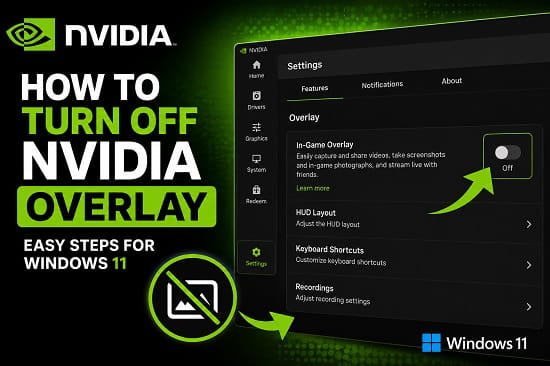
NVIDIA Overlay is a built-in feature included with the NVIDIA App and older versions of GeForce Experience. It gives you quick access to useful gaming tools such as Instant Replay, game recording, screenshots, performance monitoring, filters, and broadcasting without leaving your game. While these features are helpful for many users, they aren’t necessary for everyone.
Some people prefer to turn off the NVIDIA Overlay because it consumes system resources, causes game stuttering, displays unwanted notifications, or conflicts with certain games and applications. Others simply don’t use its recording or streaming features and want to reduce background processes.
Fortunately, disabling the NVIDIA Overlay is straightforward and doesn’t affect your graphics driver or the performance of your NVIDIA graphics card. If you ever need the feature again, you can enable it with just a few clicks.
In this guide, I’ll show you several ways to turn off the NVIDIA Overlay on Windows 11, explain when disabling it makes sense, and cover what to do if the overlay won’t turn off properly.
If you’re also experiencing problems launching NVIDIA software, you may find my guide on NVIDIA Control Panel Not Opening? Ways to Fix It useful.
What Is NVIDIA Overlay?
NVIDIA Overlay is an on-screen interface that lets you access various NVIDIA gaming features while playing games.
Depending on the version of the software you’re using, the overlay can provide:
- Instant Replay
- Screen recording
- Live streaming
- Screenshot capture
- Performance monitoring
- FPS counter
- Game filters
- Photo Mode
- Microphone controls
The overlay is usually opened using the keyboard shortcut Alt + Z.
Although many gamers use these features regularly, others never use them and prefer to disable the overlay entirely.
Why Turn Off NVIDIA Overlay?
There are several reasons why users choose to disable the overlay.
Common reasons include:
- Improved gaming performance.
- Reduced background GPU usage.
- Preventing accidental overlay pop-ups.
- Eliminating FPS counter distractions.
- Fixing game compatibility issues.
- Solving overlay crashes.
- Preventing recording from starting accidentally.
- Reducing background processes.
- Troubleshooting NVIDIA software problems.
If you’re experiencing lag or graphics issues after a driver update, you may also want to read How to Roll Back NVIDIA Driver on Windows 11 before disabling the overlay.
Does Turning Off NVIDIA Overlay Improve Performance?
In most cases, the performance difference is small.
Modern computers can usually run NVIDIA Overlay without noticeable slowdowns.
However, disabling it may help if:
- Your PC has limited RAM.
- Your graphics card is older.
- You’re trying to maximize FPS.
- Background recording is constantly enabled.
- You experience random stuttering while gaming.
- Certain games crash when the overlay loads.
While turning off the overlay isn’t a miracle performance boost, removing unnecessary background features can make troubleshooting easier.
Before Disabling NVIDIA Overlay
Before making any changes, keep these points in mind.
Disabling the overlay does not:
- Uninstall NVIDIA drivers.
- Remove NVIDIA Control Panel.
- Affect your graphics card.
- Delete your games.
- Reduce graphics quality.
Instead, it simply disables the overlay features until you choose to enable them again.
Method 1: Turn Off NVIDIA Overlay Using the NVIDIA App
The easiest method is through the NVIDIA App itself.
- Open the NVIDIA App.
- Click the Settings icon.
- Select Features or Overlay (depending on the app version).
- Locate In-Game Overlay.
- Toggle it Off.
Once disabled, the overlay will no longer appear while playing games.
If it continues appearing, restart your computer before checking again.
Method 2: Disable NVIDIA Overlay in GeForce Experience
If you’re still using GeForce Experience instead of the newer NVIDIA App, the steps are slightly different.
- Open GeForce Experience.
- Click the Settings icon.
- Under the General tab, locate In-Game Overlay.
- Turn the switch Off.
- Close GeForce Experience.
The keyboard shortcut Alt + Z should now stop opening the overlay.
Method 3: Turn Off Instant Replay
Sometimes users only want to disable automatic recording rather than the entire overlay.
To disable Instant Replay:
- Press Alt + Z.
- Select Instant Replay.
- Choose Turn Off.
This stops continuous background recording while allowing you to continue using other overlay features if needed.
Method 4: Disable the NVIDIA Performance Overlay
The performance overlay displays information such as:
- FPS
- GPU usage
- CPU usage
- Temperature
- Latency
To disable it:
- Press Alt + R if the performance overlay is active.
- Or open the NVIDIA Overlay using Alt + Z.
- Navigate to Performance.
- Disable the performance overlay.
This removes the statistics from your screen without disabling the entire overlay.
Method 5: Disable the FPS Counter
Some users only want to remove the FPS counter that appears while gaming.
To do this:
- Open the NVIDIA Overlay.
- Select HUD Layout.
- Click Performance.
- Turn the FPS counter off.
This keeps the overlay available while hiding performance statistics
Method 6: Disable NVIDIA Overlay from Startup
If you never use the NVIDIA Overlay, you can stop parts of the NVIDIA software from launching automatically when Windows starts. This can reduce unnecessary background processes and slightly improve startup time.
To disable NVIDIA startup items:
- Press Ctrl + Shift + Esc to open Task Manager.
- Select the Startup apps tab.
- Locate NVIDIA-related startup entries.
- Right-click the ones responsible for the overlay.
- Select Disable.
- Restart your computer.
Disabling startup items doesn’t uninstall NVIDIA software. It simply prevents unnecessary components from loading automatically.
Method 7: Disable NVIDIA Share
Older versions of GeForce Experience use a feature called NVIDIA Share, which powers the overlay functionality.
If you’re using an older release:
- Open GeForce Experience.
- Click the Settings icon.
- Locate Share.
- Toggle it Off.
Once disabled, the overlay and its recording features will stop running.
Method 8: Close NVIDIA Background Processes
Occasionally, the overlay remains active because background NVIDIA processes haven’t closed correctly.
To restart them:
- Open Task Manager.
- Select the Processes tab.
- Locate NVIDIA-related processes.
- Right-click each process.
- Select End task.
- Restart the NVIDIA App or GeForce Experience if necessary.
Windows will automatically restart the required services the next time they’re needed.
Method 9: Update the NVIDIA App or GeForce Experience
Sometimes the overlay doesn’t turn off because of a software bug.
Installing the latest version of the NVIDIA App or GeForce Experience often fixes known issues.
To update:
- Open the NVIDIA App or GeForce Experience.
- Navigate to the Drivers section.
- Check for available updates.
- Install the latest version.
- Restart your computer.
If updating causes new problems, consider returning to an older stable driver. My guide on How to Roll Back NVIDIA Driver on Windows 11 explains how to do this safely.
Method 10: Reinstall the NVIDIA App
If the overlay continues behaving unexpectedly, reinstalling the application may resolve corrupted files.
To reinstall:
- Open Settings.
- Go to Apps > Installed apps.
- Locate the NVIDIA App or GeForce Experience.
- Click Uninstall.
- Restart your PC.
- Download and install the latest version from NVIDIA’s official website.
- Sign in if required.
- Disable the overlay again.
Reinstalling the application doesn’t remove your graphics driver.
What Happens After Turning Off NVIDIA Overlay?
Disabling the overlay only affects the overlay features.
Your graphics card continues working normally.
After turning it off:
- Games continue running as usual.
- NVIDIA drivers remain installed.
- NVIDIA Control Panel continues working.
- Graphics performance is unchanged in most situations.
- Instant Replay stops recording.
- Game screenshots through the overlay become unavailable.
- Overlay notifications disappear.
- The Alt + Z shortcut no longer opens the overlay.
If you later decide to use NVIDIA recording or streaming features again, simply enable the overlay from the NVIDIA App or GeForce Experience.
NVIDIA Overlay Won’t Turn Off?
If the overlay remains enabled after following the steps above, try these additional fixes.
Restart Your Computer
Sometimes Windows doesn’t apply NVIDIA configuration changes until after a restart.
Restart your PC and check whether the overlay is still active.
Sign Out and Back Into the NVIDIA App
Account synchronization problems can occasionally prevent settings from being saved.
Signing out and signing back in refreshes your profile settings.
Update Windows
Compatibility issues between Windows and NVIDIA software can occasionally cause overlay problems.
Install any available Windows updates before trying again.
Repair the NVIDIA App
If you’re using the Microsoft Store version, repairing the application can resolve damaged files without requiring a complete reinstall.
Perform a Clean NVIDIA Installation
If nothing else works, perform a clean graphics driver installation.
A clean installation removes old configuration files that may be preventing the overlay settings from updating.
If you’ve never performed a clean installation before, my guide on NVIDIA Control Panel Not Opening? Ways to Fix It explains the process in greater detail.
Should You Leave NVIDIA Overlay Enabled?
That depends on how you use your computer.
Keeping it enabled makes sense if you regularly:
- Record gameplay.
- Capture screenshots.
- Stream games.
- Use Instant Replay.
- Monitor FPS.
- Apply NVIDIA game filters.
Turning it off is usually the better option if you:
- Never use recording features.
- Want fewer background processes.
- Experience overlay conflicts.
- Want to reduce distractions while gaming.
- Are troubleshooting NVIDIA software problems.
There’s no right or wrong choice. You can enable or disable the overlay whenever your needs change.
Frequently Asked Questions
Does turning off NVIDIA Overlay improve FPS?
For most modern computers, the improvement is minimal. However, disabling Instant Replay and background recording can free a small amount of system resources, particularly on older hardware.
Can I turn the overlay back on later?
Yes. Simply open the NVIDIA App or GeForce Experience and enable In-Game Overlay again.
Will disabling NVIDIA Overlay uninstall my graphics driver?
No. The overlay is a software feature that operates independently of the graphics driver.
Does turning off the overlay affect NVIDIA Control Panel?
No. NVIDIA Control Panel continues working normally after the overlay is disabled.
If you’re having trouble launching it, see NVIDIA Control Panel Not Opening? Ways to Fix It for dedicated troubleshooting steps.
Why does the overlay keep turning back on?
This can happen after updating the NVIDIA App, installing a new graphics driver, or resetting application settings. Disable the overlay again and restart your computer.
Can I disable only Instant Replay?
Yes. You can turn off Instant Replay without disabling the rest of the overlay features.
Is NVIDIA Overlay safe?
Yes. It’s an official NVIDIA feature designed for gaming, recording, and performance monitoring. Disabling it is simply a matter of personal preference.
Which shortcut opens NVIDIA Overlay?
The default keyboard shortcut is Alt + Z, although this may vary if you’ve customized the hotkeys.
Whether you want to improve gaming performance, eliminate on-screen distractions, or simply stop background recording, turning off NVIDIA Overlay is a quick and safe change that doesn’t affect your graphics driver or your NVIDIA graphics card. If the overlay refuses to disable, updating the NVIDIA software, restarting its background services, or reinstalling the NVIDIA App will usually resolve the problem.
