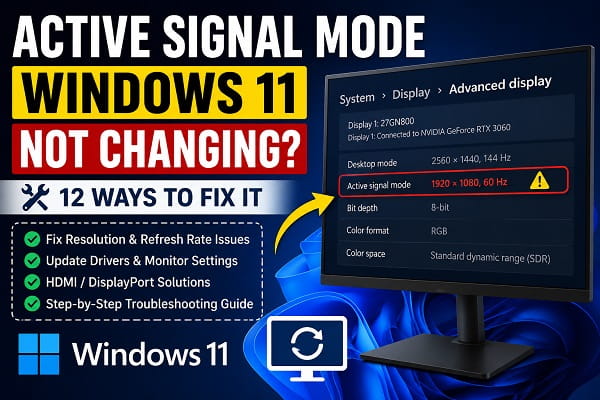
Changing your monitor’s resolution or refresh rate should be a simple process. However, many Windows 11 users discover that even after selecting a new display resolution or refresh rate, the Active Signal Mode remains unchanged. This can prevent your monitor from running at its maximum resolution or refresh rate, leaving you stuck at lower settings like 60Hz even though your display supports 120Hz, 144Hz, or higher.
The problem often occurs after upgrading Windows, installing a new graphics driver, connecting a new monitor, or switching between HDMI and DisplayPort cables. In other cases, Windows may display one resolution under Display Resolution while Active Signal Mode continues showing an older value, causing confusion about which setting your monitor is actually using.
The good news is that this issue is usually caused by display settings, graphics drivers, monitor configuration, or cable limitations rather than faulty hardware.
In this guide, I’ll explain what Active Signal Mode means, why it isn’t changing, and the most effective ways to fix the problem on Windows 11.
If you’re also experiencing graphics-related problems, you may find How to Roll Back NVIDIA Driver on Windows 11 helpful, especially if the issue started after updating your graphics driver.
What Is Active Signal Mode in Windows 11?
Active Signal Mode shows the actual resolution and refresh rate that Windows is sending to your monitor.
You can view it by going to:
Settings → System → Display → Advanced Display
Here you’ll see information such as:
- Desktop Resolution
- Active Signal Resolution
- Refresh Rate
- Bit Depth
- Color Format
- Color Space
Unlike Desktop Resolution, Active Signal Mode reflects the signal currently being transmitted from your graphics card to your display.
Desktop Resolution vs Active Signal Resolution
Many users assume these two settings are identical, but they are not.
Desktop Resolution is the resolution Windows uses to render the desktop and applications.
Active Signal Resolution is the resolution actually being output to your monitor.
For example:
- Desktop Resolution: 2560 × 1440
- Active Signal Resolution: 1920 × 1080
In this case, Windows is rendering the desktop at 1440p, but your graphics hardware or display configuration is still outputting a 1080p signal.
This mismatch often causes blurry images, incorrect scaling, or lower-than-expected refresh rates.
Why Active Signal Mode Isn’t Changing
Several factors can prevent Windows from updating the active display signal.
The most common causes include:
- Incorrect refresh rate settings.
- Outdated graphics drivers.
- Monitor limitations.
- HDMI bandwidth restrictions.
- DisplayPort compatibility issues.
- Windows display scaling problems.
- Graphics control panel settings.
- Multiple monitor conflicts.
- Faulty display cables.
- Windows bugs after updates.
Fortunately, most of these issues can be resolved without replacing any hardware.
Before You Start
Before making changes, verify that:
- Your monitor actually supports the desired resolution and refresh rate.
- You’re using the correct display cable.
- Your graphics card supports the selected display mode.
- Windows is fully updated.
- Your graphics driver is functioning correctly.
These basic checks can save considerable troubleshooting time.
Fix 1: Restart Your Computer
A simple restart can refresh Windows’ display subsystem.
Restart your PC and then:
- Open Settings.
- Go to System.
- Select Display.
- Open Advanced Display.
- Check whether Active Signal Mode has updated.
If not, continue with the next solution.
Fix 2: Select the Correct Refresh Rate
Sometimes Windows changes the display resolution but keeps using the previous refresh rate.
To check:
- Open Settings.
- Go to System.
- Click Display.
- Select Advanced Display.
- Choose the correct monitor.
- Change the Refresh Rate to the highest supported value.
Windows may immediately update the Active Signal Mode after applying the correct refresh rate.
Fix 3: Check Your Display Resolution
Verify that Windows is using the monitor’s native resolution.
To do this:
- Open Settings.
- Navigate to Display.
- Under Display Resolution, select the resolution marked Recommended.
Using the monitor’s native resolution ensures the graphics card outputs the correct signal whenever possible.
Fix 4: Update Your Graphics Driver
Display problems are frequently caused by outdated or corrupted graphics drivers.
Depending on your hardware, update your:
- NVIDIA driver
- AMD Radeon driver
- Intel graphics driver
If the issue started immediately after a driver update, rolling back to the previous version may resolve it. My guide on How to Roll Back NVIDIA Driver on Windows 11 explains the process step by step.
Fix 5: Restart the Graphics Driver
Windows includes a keyboard shortcut that quickly restarts the graphics driver without restarting the entire computer.
Press:
Windows + Ctrl + Shift + B
Your screen may briefly flash.
Afterward, check whether the Active Signal Mode has updated correctly.
Fix 6: Use the Correct Display Cable
One of the most overlooked causes of Active Signal Mode not changing is using a display cable that doesn’t support your monitor’s full capabilities.
For example, an older HDMI cable may only support:
- 1920 × 1080 at 60Hz
while your monitor is capable of:
- 2560 × 1440 at 144Hz
- 3840 × 2160 (4K) at 120Hz
If the cable lacks sufficient bandwidth, Windows may continue outputting a lower active signal even after you change the display settings.
Whenever possible:
- Use the cable supplied with your monitor.
- Use DisplayPort for high refresh rate gaming monitors.
- Use HDMI 2.0 or HDMI 2.1 for higher resolutions and refresh rates.
After replacing the cable, restart your PC and check the Active Signal Mode again.
Fix 7: Check Your Monitor’s On-Screen Display (OSD)
Many monitors have their own settings that can override Windows display preferences.
Open your monitor’s built-in menu using the physical buttons and verify:
- Refresh Rate
- Input Source
- Display Mode
- Adaptive Sync (FreeSync or G-SYNC)
- Gaming Mode
Some monitors require specific settings before allowing higher refresh rates or resolutions.
After saving the changes, reconnect the monitor if necessary.
Fix 8: Change the Resolution Using Your Graphics Software
If Windows Settings doesn’t update the Active Signal Mode, try changing the display configuration using your graphics software.
NVIDIA Graphics Cards
Open NVIDIA Control Panel.
Go to:
Display → Change Resolution
Select:
- Native resolution
- Highest supported refresh rate
Click Apply.
If you’re unable to access NVIDIA Control Panel, see NVIDIA Control Panel Not Opening? Ways to Fix It for additional troubleshooting.
AMD Graphics Cards
Open AMD Software: Adrenalin Edition.
Navigate to the display settings and verify:
- Resolution
- Refresh Rate
- Scaling Mode
Apply the changes and restart the display if prompted.
Intel Graphics
Open Intel Graphics Command Center.
Under Display, confirm that the selected resolution and refresh rate match your monitor’s specifications.
Fix 9: Disconnect Additional Monitors
Using multiple displays can sometimes cause Windows to select incorrect display modes.
To test:
- Disconnect all secondary monitors.
- Restart the computer.
- Leave only the primary monitor connected.
- Check the Active Signal Mode again.
If it changes correctly, reconnect the other displays one at a time to identify whether one of them is causing the conflict.
Fix 10: Update Windows 11
Microsoft regularly releases updates that improve display compatibility and graphics performance.
To check for updates:
- Open Settings.
- Select Windows Update.
- Click Check for updates.
- Install any available updates.
- Restart your PC.
Display-related bugs are often resolved through cumulative Windows updates.
Fix 11: Reinstall Your Graphics Driver
If updating the driver doesn’t help, reinstalling it may resolve corrupted display settings.
The general process is:
- Open Device Manager.
- Expand Display Adapters.
- Right-click your graphics card.
- Select Uninstall Device.
- Restart your computer.
- Install the latest driver from your graphics card manufacturer.
For NVIDIA users, reinstalling the latest driver or rolling back to a previous stable version can often resolve display mode problems.
Fix 12: Reset Display Settings
Incorrect display configurations can sometimes prevent Windows from applying new signal modes.
Try resetting your display configuration by:
- Returning the monitor to its native resolution.
- Setting the recommended scaling percentage.
- Selecting the recommended refresh rate.
- Restarting Windows.
Windows will automatically renegotiate the display signal with your monitor during startup.
Why Active Signal Mode Keeps Reverting
If the Active Signal Mode changes briefly before switching back, the problem may be caused by:
- Unsupported monitor settings.
- Faulty display cables.
- Graphics driver conflicts.
- Monitor firmware limitations.
- Multiple display configurations.
- Third-party display management software.
Removing unnecessary display utilities and reinstalling your graphics driver often resolves this behavior.
Tips to Prevent Display Signal Problems
To reduce the likelihood of similar issues in the future:
- Keep Windows 11 updated.
- Install graphics drivers directly from NVIDIA, AMD, or Intel.
- Use certified HDMI or DisplayPort cables.
- Avoid forcing unsupported resolutions.
- Keep monitor firmware updated if the manufacturer provides updates.
- Use your monitor’s recommended resolution and refresh rate whenever possible.
These simple practices help Windows maintain the correct display signal and improve overall stability.
Frequently Asked Questions
Why is Active Signal Mode different from Desktop Resolution?
Desktop Resolution is the resolution Windows uses to render the desktop, while Active Signal Mode shows the actual signal being sent to your monitor. If the two values differ, Windows or your graphics hardware may be scaling the image before output.
Why won’t Windows 11 change the Active Signal Mode?
This usually happens because of an incorrect refresh rate, outdated graphics drivers, unsupported display settings, monitor limitations, or an incompatible display cable.
Does HDMI affect Active Signal Mode?
Yes.
Older HDMI cables may not support higher resolutions or refresh rates, causing Windows to continue using a lower Active Signal Mode.
Is DisplayPort better than HDMI?
For many gaming monitors, DisplayPort supports higher refresh rates and resolutions than older HDMI standards. However, modern HDMI 2.1 connections also provide excellent performance on compatible hardware.
Can graphics drivers cause Active Signal Mode problems?
Absolutely.
Corrupted or outdated NVIDIA, AMD, or Intel graphics drivers are among the most common reasons Active Signal Mode fails to update correctly.
Will reinstalling the graphics driver fix the problem?
In many cases, yes.
Reinstalling or updating the graphics driver refreshes the communication between Windows and your monitor, allowing the correct display signal to be applied.
If the issue began after installing a new driver, rolling back to an earlier version may also help. You can follow How to Roll Back NVIDIA Driver on Windows 11 if you’re using an NVIDIA graphics card.
Monitoring your Active Signal Mode is an excellent way to verify that Windows 11 is sending the correct resolution and refresh rate to your monitor. If the value refuses to change, the problem is usually related to display settings, graphics drivers, monitor configuration, or cable compatibility rather than a hardware fault. By following the troubleshooting steps in this guide, you should be able to restore the correct Active Signal Mode and enjoy your monitor at its full supported resolution and refresh rate.
