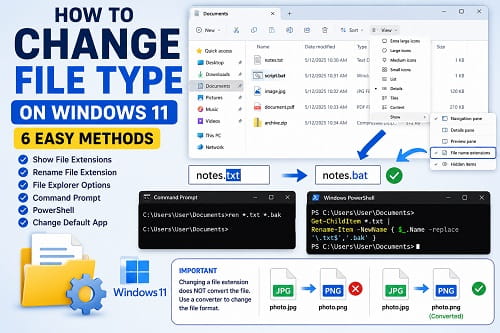
Every file on your Windows 11 computer has a file type, also known as a file extension. These extensions, such as .txt, .jpg, .pdf, .docx, and .mp4, tell Windows which application should open the file. There are times when you may need to change a file type, whether you’re creating a batch file, modifying a configuration file, preparing a script, or troubleshooting compatibility issues.
However, many users discover that Windows 11 hides file extensions by default, making it difficult to rename or change a file type. Others mistakenly believe that simply renaming a file extension converts it into a different file format, which isn’t always true.
The good news is that Windows 11 provides several ways to view and change file extensions safely. Once you understand how file types work, changing them becomes a quick and straightforward process.
In this guide, I’ll explain how to change a file type on Windows 11, when it’s appropriate to do so, and when you should use a proper file converter instead.
If File Explorer isn’t responding while you’re working with files, you may also find How to Restart File Explorer on Windows 11 helpful.
What Is a File Type?
A file type identifies the format of a file and tells Windows which application should open it.
Examples include:
- .txt
- .docx
- .jpg
- .png
- .mp4
- .zip
- .bat
Everything after the final period in a file name is the file extension.
For example:
document.docxThe extension is:
.docxWindows uses this information to determine which program should open the file.
File Type vs File Extension
Although people often use the terms interchangeably, they’re slightly different.
A file extension is the suffix attached to the file name.
A file type refers to the format of the file itself.
For example:
photo.jpgThe extension is .jpg, while the file type is a JPEG image.
Understanding this difference helps avoid problems when changing extensions.
Before Changing a File Type
Before you rename any file extension:
- Create a backup of important files.
- Make sure you know the correct extension.
- Close any program currently using the file.
- Understand that changing an extension does not automatically convert the file.
This last point is particularly important.
Renaming:
photo.jpgto
photo.pngdoes not convert the image into a PNG file. It only changes the file name.
If you actually need a different format, you’ll need a file conversion tool.
Method 1: Show File Extensions in File Explorer
Windows 11 hides file extensions by default.
To display them:
- Open File Explorer.
- Click View.
- Select Show.
- Click File name extensions.
File extensions will now appear for every file.
For example:
- report.docx
- notes.txt
- image.png
Once visible, they’re much easier to change.
Method 2: Rename the File Extension
After enabling file extensions:
- Right-click the file.
- Select Rename.
- Change the extension.
For example:
Before:
notes.txtAfter:
notes.batPress Enter.
Windows displays a warning:
If you change a file name extension, the file might become unusable.
If you’re certain, click Yes.
Method 3: Use File Explorer Properties
Some users prefer verifying the current file type before renaming it.
To do this:
- Right-click the file.
- Select Properties.
- Review the Type of file entry.
Although you can’t directly edit the extension here, Properties confirms the current file format before you rename it.
Method 4: Change Multiple File Extensions Using Command Prompt
If you need to rename several files at once, Command Prompt is much faster.
Open Command Prompt and navigate to the folder containing the files.
For example:
ren *.txt *.bakThis command changes every .txt file in the folder to .bak.
Be careful when using bulk rename commands, as the changes affect every matching file.
Method 5: Use PowerShell to Change File Extensions
PowerShell provides more flexibility for advanced users.
For example:
Get-ChildItem *.txt | Rename-Item -NewName { $_.Name -replace '\.txt$','.bak' }This renames all .txt files in the current folder to .bak.
PowerShell is especially useful when working with hundreds of files or automating repetitive tasks.
Method 6: Change the Default App for a File Type
Sometimes users don’t actually need to change the file type. Instead, they simply want Windows to open the file with a different application.
For example, you might want:
- JPG images to open with Photoshop instead of Photos.
- PDF files to open with Adobe Acrobat instead of Microsoft Edge.
- TXT files to open with Notepad++ instead of Notepad.
To change the default app:
- Open Settings.
- Click Apps.
- Select Default apps.
- Search for the file extension (for example, .pdf or .jpg).
- Choose the application you want to use.
This changes how Windows opens the file without changing the file’s actual format.
When You Should Convert a File Instead of Renaming It
One of the biggest misconceptions is that renaming a file changes its format.
It doesn’t.
For example:
Changing:
picture.jpgto
picture.pngdoes not convert the image into a PNG file.
Likewise, changing:
document.docxto
document.pdfdoesn’t create a PDF document.
If you need a genuine format conversion, use the application’s Save As, Export, or Convert feature.
Examples include:
- Microsoft Word → Save as PDF
- Paint → Save as PNG
- Photoshop → Export as JPEG
- VLC → Convert media files
This preserves the file’s integrity and ensures it can be opened correctly.
Common Problems When Changing File Types
If changing the file extension doesn’t work, one of these issues is usually responsible.
File Extensions Are Hidden
Windows hides file extensions by default.
Enable File name extensions in File Explorer before attempting to rename them.
The File Is Open
Windows won’t let you rename certain files while they’re being used.
Close the application that’s using the file and try again.
You Don’t Have Permission
Some system files and protected folders require administrator privileges before they can be renamed.
The File Stops Working
If a file becomes unusable after changing its extension, it’s likely because the extension no longer matches the file’s actual format.
Restore the original extension if possible.
Tips for Managing File Types Safely
To avoid problems:
- Always create a backup before changing important files.
- Enable file extensions permanently if you frequently work with different file types.
- Use file converters instead of simply renaming extensions when changing formats.
- Avoid modifying system files unless you’re following trusted instructions.
- Verify the correct extension before saving your changes.
These habits help prevent accidental file corruption.
Frequently Asked Questions
How do I change a file type in Windows 11?
First, enable File name extensions in File Explorer. Then rename the file and replace the existing extension with the new one.
Why can’t I see file extensions?
Windows 11 hides file extensions by default.
Open File Explorer, click View, select Show, and enable File name extensions.
Does changing the file extension convert the file?
No.
Changing the extension only changes the file name. It doesn’t alter the file’s internal format.
What’s the difference between changing and converting a file?
Changing the extension simply renames the file.
Converting a file creates a new version in a different format using compatible software.
Why does Windows warn me when I change a file extension?
Windows displays this warning because changing the extension incorrectly may prevent the file from opening properly.
Can I change multiple file extensions at once?
Yes.
You can rename multiple files using Command Prompt or PowerShell, making it much faster than changing each file individually.
If you’re working with files regularly, you may also find How to Restart File Explorer on Windows 11 useful if File Explorer becomes unresponsive. Likewise, Create a Samba Share on Windows 11 can help if you want to share files across your network, while Running Scripts Is Disabled on This System? How to Fix It is helpful if you’re creating or renaming PowerShell or batch script files.
Changing a file type on Windows 11 is simple once file extensions are visible. Whether you’re renaming a single file, changing multiple extensions with Command Prompt or PowerShell, or updating the default application for a file type, Windows provides several built-in tools to make the process easy.
Just remember that renaming a file extension doesn’t convert the file into a new format. If you need a genuine file conversion, always use the appropriate application or converter to preserve the file’s contents and compatibility.
