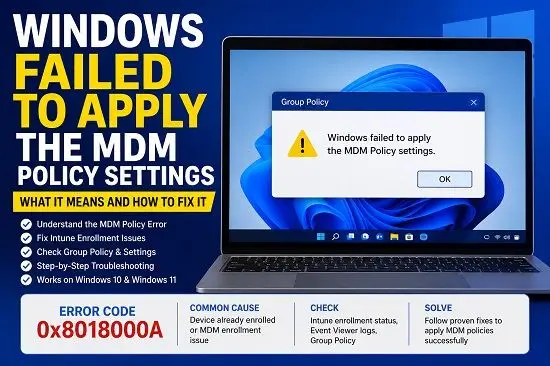
If you run gpupdate /force on a Windows computer and see “Windows failed to apply the MDM Policy settings”, the message can look like a serious Windows management failure.
In many cases, however, the warning is expected and does not require a repair.
Microsoft documents a specific situation involving Microsoft Entra hybrid-joined Windows devices that are already enrolled in Microsoft Intune. When an automatic MDM enrollment Group Policy is applied, running gpupdate /force can cause Windows to process the MDM enrollment policy again. Because the device is already enrolled, Windows can return the warning along with error 0x8018000a.
Microsoft says this behavior is expected and the warning can safely be ignored when the device is already enrolled correctly.
The important part is determining whether you are seeing this harmless warning or whether the computer actually has an MDM enrollment problem.
What Does “Windows Failed to Apply the MDM Policy Settings” Mean?
MDM stands for Mobile Device Management. Organizations use MDM to manage Windows devices, configure settings, deploy applications, enforce security requirements, and control other aspects of the operating system.
Microsoft Intune is one of the services commonly used for Windows MDM.
When you run:
gpupdate /forceWindows forces a refresh of Group Policy. On computers configured for automatic MDM enrollment, the MDM policy extension can also be processed.
If the device is already enrolled, Windows may attempt to process the enrollment operation again and display:
Windows failed to apply the MDM Policy settings.
MDM Policy settings might have its own log file.
This can appear even when the computer’s normal Group Policy processing completes successfully.
That distinction is important.
The warning does not automatically mean that Intune enrollment is broken.
Is This MDM Warning Actually a Problem?
Not necessarily.
The warning is generally safe to ignore when all of the following are true:
- The PC is Microsoft Entra hybrid joined.
- The PC is already enrolled in Microsoft Intune.
- Computer Policy update completes successfully.
- User Policy update completes successfully.
- Intune shows the device as enrolled.
- The device is checking in normally.
- Configuration policies are being applied.
- The error is associated with the already-enrolled condition.
Microsoft’s current documentation identifies this exact situation as expected behavior.
If your device meets those conditions, there is usually no reason to delete registry entries, remove enrollment tasks, or reinstall Windows.
Why Does gpupdate /force Trigger the Warning?
The warning is related to how automatic MDM enrollment works with Group Policy.
Organizations can configure Windows devices to automatically enroll in Intune using a Group Policy setting. This is particularly useful for environments that use traditional Active Directory alongside Microsoft Entra ID and Intune.
When the relevant Group Policy is processed, Windows can trigger the MDM enrollment process.
Normally, this happens when the device needs to enroll.
The problem is that gpupdate /force deliberately tells Windows to process Group Policy again. The MDM policy extension can therefore run again even though enrollment has already taken place.
Windows then reports the MDM policy warning because the enrollment operation is being attempted against a device that is already enrolled.
This is why the message can say that MDM policy processing failed while the device itself continues to work normally.
Check the Error Code
Before changing anything, look for the specific error code associated with the warning.
The code Microsoft documents for the already-enrolled scenario is:
0x8018000aMicrosoft explains that this code means the device is already enrolled.
If you see this code and the computer is already managed by Intune, the warning may not require any action.
Do not assume that every possible MDM error code means the same thing. If you see a different code, investigate that code separately.
How to Check Whether the PC Is Already Enrolled
Start by checking the Windows management connection.
Open:
Settings > Accounts > Access work or schoolReview the accounts and organizational connections shown there.
A company-managed PC may show that it is connected to the organization’s environment.
If you are the IT administrator, also check the Microsoft Intune admin center and search for the device.
Confirm that:
- The device exists.
- It is associated with the expected organization.
- It has checked in recently.
- It is not showing an enrollment error.
- Expected configuration profiles are applying.
If Intune shows a healthy device record, the warning from gpupdate /force is much less concerning.
Use dsregcmd /status
For a more detailed device-registration check, open Command Prompt and run:
dsregcmd /statusLook under the Device State section.
Important values include:
AzureAdJoined
DomainJoined
A hybrid-joined Windows device normally has both a traditional domain relationship and a Microsoft Entra relationship.
Do not diagnose the entire enrollment state from one line alone. Windows device management can involve Active Directory, Microsoft Entra ID, Intune, Group Policy, and other management components.
If the device is supposed to be hybrid joined but the output shows an unexpected state, the MDM warning may be part of a larger device-registration problem.
Check the Device in Intune
If the computer is supposed to be managed through Intune, check the device in the Intune admin center.
Look at the device’s:
- Enrollment status
- Last check-in
- Compliance state
- Configuration profile status
- Associated user
- Device identity
If the device is enrolled and continues to check in, the MDM warning from gpupdate /force may be harmless.
If the device is missing from Intune or has stopped checking in, investigate the enrollment itself.
Generate a Group Policy Report
If you want to determine which Group Policy is triggering the MDM processing, generate a report.
Open Command Prompt and run:
gpresult /h "%USERPROFILE%\Desktop\GPReport.html"Windows will create an HTML report on your desktop.
Open it and review the Applied Group Policy Objects section.
Look for policies related to automatic MDM enrollment.
This is especially useful on computers that receive many policies from a domain. An administrator may have enabled automatic MDM enrollment without realizing that the policy is being processed during the forced refresh.
Microsoft also recommends using GPRESULT /H GPReport.html when additional information about Group Policy processing is needed.
Check the Automatic MDM Enrollment Policy
If your organization uses Group Policy to automatically enroll Windows devices in Intune, check the policy configuration.
The relevant setting is commonly found under:
Computer Configuration
>
Administrative Templates
>
Windows Components
>
MDM
The policy is associated with automatic MDM enrollment using Microsoft Entra credentials.
The exact wording can differ depending on the administrative template version.
If the policy is intentionally enabled, do not disable it simply because gpupdate /force displays the warning.
First determine whether the computer is already enrolled.
If it is, the warning may be the expected result described by Microsoft.
Do Not Delete MDM Registry Entries as Your First Fix
You may find troubleshooting guides that recommend deleting registry entries associated with Intune enrollment.
Do not make that your first step.
MDM enrollment information is part of the computer’s management configuration. Removing it without understanding the enrollment state can create a new problem.
Before changing the registry, confirm:
- Whether the computer is supposed to be managed.
- Whether it appears in Intune.
- Whether it is checking in.
- Whether policies are applying.
- Which error code is being reported.
- Whether Event Viewer shows a separate enrollment failure.
If the device is healthy, registry cleanup is unnecessary.
Check Event Viewer
If the device is genuinely having MDM problems, Event Viewer can provide more useful information.
Open:
Event ViewerSearch for events associated with:
- MDM
- Enrollment
- DeviceManagement
- Group Policy
- Policy processing
Pay attention to events generated at the same time you ran gpupdate /force.
The goal is to find out whether the MDM warning is accompanied by another error.
A single gpupdate warning is not enough to diagnose a broken enrollment.
If Event Viewer shows another error code, use that code to continue the investigation.
Check the GPSVC Log
Windows also has Group Policy service logging information.
A useful location is:
%windir%\debug\usermode\Gpsvc.logIn Microsoft’s documented MDM scenario, the log can show the MDM Policy extension returning:
0x8018000aThat provides evidence that the warning is coming from the MDM policy extension rather than from ordinary computer or user policy processing.
You generally do not need to enable extensive logging just because the warning appeared. Start with the Group Policy report and Event Viewer.
What If Intune Policies Are Not Applying?
This is where you should stop treating the message as harmless.
If the device is enrolled but policies are not arriving, check the following.
Check the last Intune check-in
A stale check-in can indicate that the device has a communication or enrollment problem.
Check policy assignment
A device can be enrolled successfully but not receive a particular configuration profile because the profile was never assigned to the device or its user.
Check Microsoft Entra registration
Run:
dsregcmd /statusand confirm that the registration state matches the organization’s expected configuration.
Check enrollment configuration
Verify that automatic enrollment is configured correctly for the affected users and devices.
Check for conflicts
A Windows setting can be influenced by Group Policy, Intune, Configuration Manager, or co-management.
If two systems attempt to control the same setting, the final behavior may not be what you expect.
What If the Device Is Not Enrolled?
If the PC is not enrolled in Intune, do not automatically assume the Microsoft-documented harmless scenario applies.
A device that should be enrolled but is not needs further investigation.
Check:
- Microsoft Entra join status
- Automatic enrollment Group Policy
- Intune enrollment scope
- User licensing
- Enrollment restrictions
- Device restrictions
- Existing work or school connections
- Event Viewer
- MDM enrollment logs
The exact cause depends on the organization’s configuration.
Check Windows Enrollment Tasks
Windows uses scheduled tasks as part of automatic MDM enrollment.
Open:
Task SchedulerLook through the Microsoft Windows task hierarchy for enrollment-related tasks.
If the PC should automatically enroll, check whether the relevant task exists and whether it is running successfully.
Do not delete enrollment tasks simply because the MDM warning appears.
If the device is already enrolled and healthy, those tasks are part of the normal management configuration.
If enrollment is actually failing, task history can provide another clue about where the process is stopping.
Run gpupdate /force Again
After checking the configuration, you can run:
gpupdate /forceagain.
Pay attention to the complete output.
If you see:
Computer Policy update has completed successfully.and:
User Policy update has completed successfully.while the only warning is:
Windows failed to apply the MDM Policy settings.check the enrollment state before doing anything else.
If the device is already enrolled and the associated code is 0x8018000a, this can be the expected behavior.
What Does Error 0x8018000a Mean?
In this particular MDM scenario, 0x8018000a means that the device is already enrolled.
This explains why the message is confusing.
The MDM policy extension is being processed, but Windows cannot enroll a device that has already been enrolled.
The result is a warning even though the existing enrollment may be perfectly healthy.
If the computer is not enrolled, however, do not assume that the same explanation applies without checking the surrounding logs and enrollment configuration.
When Is the Warning a Genuine Problem?
You should investigate the issue when you notice other symptoms.
Examples include:
- The device is missing from Intune.
- Intune shows an enrollment failure.
- The device has stopped checking in.
- Configuration profiles are not applying.
- Compliance information is missing.
- Automatic enrollment never completes.
- Event Viewer shows additional MDM errors.
dsregcmd /statusreports an unexpected registration state.- The user cannot connect the PC to the organization’s management system.
In these cases, the gpupdate warning may be pointing toward a real enrollment problem.
What If Windows Update Settings Are Also Wrong?
In a managed environment, Windows Update settings can be controlled by several systems.
These may include:
- Group Policy
- Intune configuration profiles
- Windows Update for Business
- Configuration Manager
- Co-management
Therefore, an unexpected Windows Update setting does not automatically mean MDM enrollment has failed.
If you are troubleshooting a normal Windows Update problem, see my guide on how to clear the Windows Update cache.
If Windows is failing during a major upgrade because of a driver or compatibility issue, see my guide on Windows install error 0xC1900101.
Should You Disable the MDM Policy?
Do not disable the automatic MDM enrollment policy simply to make the warning disappear.
If your organization uses Intune, that policy may be responsible for enrolling computers automatically.
Disabling it could prevent future devices from enrolling.
The better approach is to determine whether the warning is expected.
If the device is already enrolled and healthy, leave the policy alone.
If enrollment is genuinely failing, fix the enrollment configuration rather than hiding the warning.
What If This Is a Personal Windows PC?
If this is your own computer and you do not use Intune or an organization’s device-management system, investigate why MDM is being processed.
Open:
Settings > Accounts > Access work or schoolReview the connected accounts.
There may be a work or school account connected to Windows, or the computer may have previously been managed by an organization.
Do not remove an organizational connection from a company-owned computer without contacting the IT department first.
On a personal computer, however, reviewing old work or school connections can help explain why Windows is attempting to process MDM policies.
A Safe Troubleshooting Order
If you see Windows failed to apply the MDM Policy settings, use this order:
Step 1: Confirm when the warning appears
Check whether it happens after:
gpupdate /forceStep 2: Record the error code
Look for:
0x8018000aor another code.
Step 3: Check the work or school connection
Open:
Settings > Accounts > Access work or schoolStep 4: Check the Intune device record
If you are the administrator, confirm enrollment and recent check-in.
Step 5: Run dsregcmd /status
Check the Microsoft Entra and domain join state.
Step 6: Generate a Group Policy report
Run:
gpresult /h "%USERPROFILE%\Desktop\GPReport.html"Step 7: Check Event Viewer
Look for MDM and enrollment events around the time of the warning.
Step 8: Investigate only if the device is genuinely unhealthy
If the device is already enrolled and working, do not make invasive changes just to remove the warning.
Frequently Asked Questions
Why does Windows say it failed to apply the MDM Policy settings?
The warning can appear when gpupdate /force processes an automatic MDM enrollment policy on a Microsoft Entra hybrid-joined device that is already enrolled in Intune. In that documented situation, the warning is expected.
Can I safely ignore the MDM policy warning?
Yes, if the computer is already enrolled in Intune, is checking in normally, policies are applying, and the warning corresponds to the already-enrolled condition. If enrollment or policy delivery is actually failing, investigate further.
What does 0x8018000a mean?
In the documented scenario, 0x8018000a means that the device is already enrolled. The warning occurs because Windows attempts to process the MDM enrollment policy again during a forced Group Policy refresh.
Why does gpupdate /force cause an MDM error?
gpupdate /force forces Group Policy processing. If automatic MDM enrollment is configured through Group Policy, the MDM policy extension can also run. A device that is already enrolled can therefore produce the warning.
How do I check if my Windows PC is enrolled in Intune?
Check the device in the Intune admin center if you are an administrator. On the PC, review Settings > Accounts > Access work or school and use dsregcmd /status to inspect Microsoft Entra registration.
How do I generate a Group Policy report?
Open Command Prompt and run:
gpresult /h "%USERPROFILE%\Desktop\GPReport.html"Open the resulting HTML file on your desktop to review the applied Group Policy objects.
Should I delete MDM registry keys?
No. Do not delete enrollment registry entries simply because this warning appears. First determine whether the device is already enrolled and whether management is functioning correctly.
Why are my Intune policies not applying?
Enrollment and policy assignment are separate. Check the device’s last Intune check-in, configuration profile assignments, Microsoft Entra registration, enrollment configuration, and possible conflicts with Group Policy or Configuration Manager.
Can Group Policy and Intune conflict?
Yes. A Windows device can receive configuration from Group Policy, Intune, Configuration Manager, or co-management. Conflicting settings can produce unexpected results.
Does this warning mean Windows is broken?
No. In Microsoft’s documented Microsoft Entra hybrid-joined and already-enrolled scenario, the warning is expected behavior and does not mean that Windows itself is damaged.
The most important point about “Windows failed to apply the MDM Policy settings” is that the word failed does not automatically mean your Windows computer has a broken MDM configuration.
If the message appears after gpupdate /force, the device is Microsoft Entra hybrid joined, and it is already enrolled in Intune, the warning may be expected. Microsoft’s documentation specifically identifies 0x8018000a as the already-enrolled condition in this situation.
If the computer is not enrolled, policies are not arriving, Intune has stopped receiving check-ins, or additional MDM errors appear in Event Viewer, then the warning needs proper troubleshooting.
Start with the enrollment state, dsregcmd /status, gpresult, Event Viewer, and the Intune device record. Avoid deleting registry entries or enrollment tasks until you know that enrollment is actually broken.
That approach helps distinguish a harmless gpupdate warning from a genuine Windows MDM enrollment problem.
