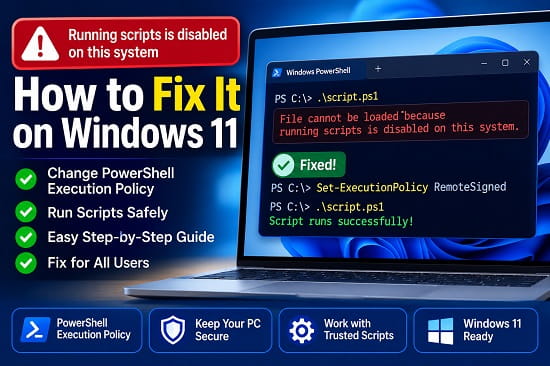
If you’ve tried running a PowerShell script and received the message “Running scripts is disabled on this system,” you’re not alone. This is one of the most common PowerShell errors Windows users encounter, especially when installing software, running automation scripts, configuring developer tools, or following online tutorials.
The error usually appears because PowerShell’s execution policy prevents scripts from running as a security measure. Microsoft enables these restrictions by default to protect your computer from malicious scripts that could make unwanted changes to your system.
Fortunately, fixing the problem is usually straightforward. In most cases, you simply need to change PowerShell’s execution policy to allow trusted scripts to run. The exact method depends on your user account, system configuration, and security requirements.
In this guide, I’ll explain what this error means, why it happens, and the safest ways to fix it on Windows 11.
If you’re also troubleshooting Windows system problems, you may find my guide on Disable Driver Signature Enforcement in Windows 11 helpful.
What Does “Running Scripts Is Disabled on This System” Mean?
PowerShell uses something called an Execution Policy to control whether scripts can run.
When the policy is too restrictive, PowerShell blocks scripts and displays an error similar to:
File cannot be loaded because running scripts is disabled on this system.
This doesn’t necessarily mean your script is dangerous.
Instead, Windows is preventing all PowerShell scripts from running until you explicitly allow them.
The restriction is designed to improve security and reduce the risk of running malicious code downloaded from the internet.
Why Does This Error Appear?
Several situations can trigger this error.
The most common include:
- Running a PowerShell script for the first time.
- Installing development tools.
- Using Visual Studio Code.
- Running automation scripts.
- Executing downloaded PowerShell files.
- Company security policies.
- Windows security settings.
- Group Policy restrictions.
Fortunately, most home users can resolve the problem in just a few minutes.
Before You Change the Execution Policy
Before modifying PowerShell settings, keep these points in mind:
- Only run scripts from trusted sources.
- Avoid downloading random PowerShell scripts from unknown websites.
- Use the least permissive execution policy that solves your problem.
- Restore stricter settings if you no longer need unrestricted script execution.
Changing the execution policy incorrectly can reduce your computer’s security.
Method 1: Check the Current Execution Policy
Before making any changes, see which execution policy is currently active.
- Press Windows + X.
- Select Terminal (Admin) or Windows PowerShell (Admin).
- Run the following command:
Get-ExecutionPolicyPowerShell will return one of the following values:
- Restricted
- RemoteSigned
- AllSigned
- Unrestricted
- Bypass
- Undefined
If the result is Restricted, PowerShell blocks all scripts.
Method 2: Change the Execution Policy to RemoteSigned
For most home users, RemoteSigned is the best option.
It allows locally created scripts to run while requiring downloaded scripts to be digitally signed.
Run:
Set-ExecutionPolicy RemoteSignedWhen prompted:
[Y] YesPress Y and then Enter.
Try running your script again.
This is the solution Microsoft recommends for many personal computers because it provides a good balance between usability and security.
Method 3: Change the Policy for the Current User Only
If you don’t want to modify the execution policy for every account on your computer, you can apply the change only to your user account.
Run:
Set-ExecutionPolicy RemoteSigned -Scope CurrentUserThis leaves other user accounts unaffected while allowing you to run trusted PowerShell scripts.
Using the CurrentUser scope is often preferable on shared computers.
Method 4: Temporarily Bypass the Execution Policy
Sometimes you only need to run a single script.
Instead of permanently changing the execution policy, you can temporarily bypass it.
Run:
PowerShell -ExecutionPolicy Bypass -File "C:\Path\YourScript.ps1"The policy applies only during that PowerShell session.
Once PowerShell closes, your normal security settings remain unchanged.
This is one of the safest methods when you only need to execute a trusted script once.
Method 5: Use Unrestricted Execution Policy
If you’re working in a development environment, you may prefer the Unrestricted policy.
Run:
Set-ExecutionPolicy UnrestrictedThis allows most scripts to run.
However, Windows will still warn you before executing scripts downloaded from the internet.
Because this policy is less restrictive, it should only be used when necessary.
Method 6: Restore the Default Execution Policy
If you’ve finished running your PowerShell scripts and want to restore Windows’ default security settings, you can change the execution policy back.
Run:
Set-ExecutionPolicy RestrictedThis prevents PowerShell scripts from running again unless you change the policy in the future.
For most home users, however, RemoteSigned is usually the better long-term choice because it allows locally created scripts while still protecting against unsigned scripts downloaded from the internet.
Method 7: Check Whether Group Policy Is Blocking Scripts
On work or school computers, the execution policy may be managed by your organization’s administrator.
To check every execution policy currently applied, run:
Get-ExecutionPolicy -ListPowerShell displays something similar to:
- MachinePolicy
- UserPolicy
- Process
- CurrentUser
- LocalMachine
If MachinePolicy or UserPolicy is set, your execution policy is being controlled through Group Policy.
In that situation, local changes may not work, and you’ll need to contact your system administrator.
Method 8: Run PowerShell as Administrator
Sometimes the error occurs because PowerShell doesn’t have sufficient permissions.
To open an elevated PowerShell session:
- Press Windows + S.
- Search for PowerShell or Windows Terminal.
- Right-click it.
- Select Run as administrator.
- Run the required execution policy command again.
Administrator privileges are required when changing the execution policy for the entire computer.
Method 9: Unblock Downloaded PowerShell Scripts
If the script was downloaded from the internet, Windows may mark it as unsafe.
To unblock it:
- Locate the .ps1 file.
- Right-click it.
- Select Properties.
- Under the General tab, check Unblock if available.
- Click Apply.
- Click OK.
Now try running the script again.
Method 10: Use the Unblock-File Command
Instead of using File Explorer, PowerShell can remove the security block for downloaded scripts.
Run:
Unblock-File "C:\Path\YourScript.ps1"This removes the downloaded file’s security flag without changing your execution policy.
Understanding PowerShell Execution Policies
Knowing what each execution policy does helps you choose the safest option.
Restricted
- No PowerShell scripts can run.
- This is the default on many Windows installations.
RemoteSigned
- Local scripts can run.
- Downloaded scripts must be digitally signed.
- Recommended for most personal computers.
AllSigned
- Every script must be digitally signed.
- Provides stronger security.
- Often used in business environments.
Unrestricted
- Almost all scripts can run.
- Windows displays warnings for downloaded scripts.
- Suitable for experienced users who understand the risks.
Bypass
- No execution policy restrictions.
- Commonly used for automation or temporary script execution.
- Not recommended as a permanent setting.
Is It Safe to Change the Execution Policy?
Yes, provided you understand what you’re doing.
Changing the execution policy does not automatically make your computer unsafe.
The biggest risk comes from running PowerShell scripts from unknown or untrusted sources.
To stay safe:
- Download scripts only from trusted websites.
- Read the script whenever possible before running it.
- Avoid permanently using the Bypass policy unless absolutely necessary.
- Use RemoteSigned whenever possible.
Common Mistakes
Users often make these mistakes while trying to fix the error.
Running the Command Without Administrator Rights
Some execution policy changes require administrator privileges.
If the command fails, reopen PowerShell as Administrator.
Choosing the Wrong Scope
Changing the policy for LocalMachine affects every user account.
If you only need script access for yourself, use:
Set-ExecutionPolicy RemoteSigned -Scope CurrentUserIgnoring Group Policy
If your organization manages your computer, local changes may not work.
Always check:
Get-ExecutionPolicy -Listbefore assuming the command has failed.
Frequently Asked Questions
Why do I get “Running scripts is disabled on this system”?
PowerShell is blocking script execution because your current execution policy doesn’t allow scripts to run.
Which execution policy should I use?
For most home users, RemoteSigned provides the best balance between usability and security.
Is it safe to use Unrestricted?
It can be, but it’s less secure than RemoteSigned because it allows more scripts to run.
Does changing the execution policy affect Windows?
No.
It only changes how PowerShell handles script execution. It doesn’t modify Windows itself or affect your personal files.
Can I temporarily bypass the restriction?
Yes.
You can use the Bypass execution policy for a single PowerShell session without permanently changing your system settings.
Why does the error still appear after changing the execution policy?
Possible reasons include:
- Group Policy restrictions.
- Running PowerShell without administrator rights.
- The script is still blocked by Windows.
- The command was applied to the wrong execution policy scope.
If Windows itself begins behaving unexpectedly while you’re troubleshooting PowerShell or making system changes, you may also find How to Restart File Explorer on Windows 11, How to Boot Windows 11 in Safe Mode, or Disable Driver Signature Enforcement in Windows 11 helpful, depending on the issue you’re facing.
PowerShell’s execution policy is designed to protect your computer, not prevent legitimate work. In most cases, switching to RemoteSigned, using the correct execution policy scope, or unblocking a trusted script is enough to resolve the “Running scripts is disabled on this system” error. By understanding how execution policies work and choosing the least permissive setting that meets your needs, you can safely run PowerShell scripts while keeping your Windows 11 system secure.
